Choosing the Best Device for IPTV: Sticks, Boxes, Smart TVs and More
An honest comparison of IPTV devices, from streaming sticks to MAG boxes, with what matters for 4K, sport and stable playback.
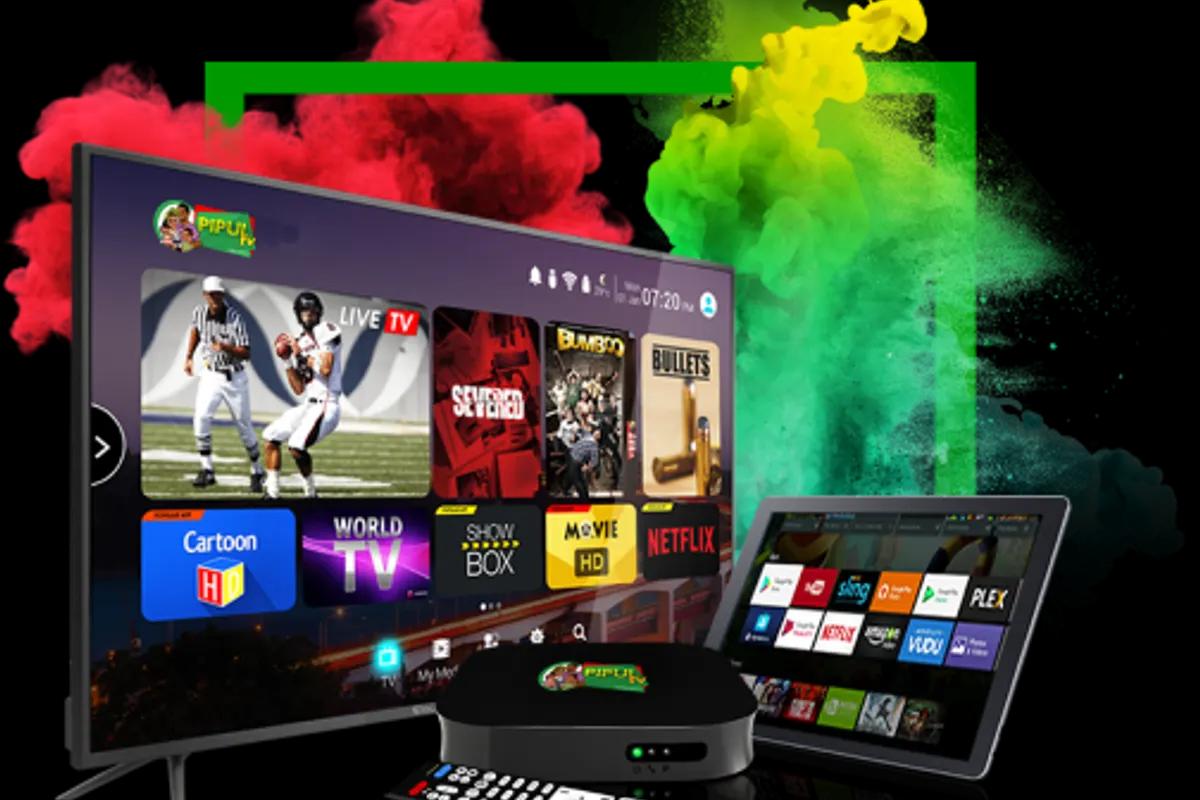
IPTV works on a remarkable range of hardware. The same subscription can play on a streaming stick that costs less than a takeaway meal, on a premium media box, on the smart TV you already own, on a phone in your pocket or on a laptop. That flexibility is one of the great advantages of internet television, but it also makes the question "which device should I use?" harder to answer than it first appears.
This guide compares the main device families for IPTV: streaming sticks, Android TV and Google TV boxes, smart TVs from Samsung and LG, Apple TV, MAG set-top boxes, mobile devices and computers. It explains what matters for a smooth picture, where each option shines and where it struggles, and how to choose based on your television, your internet connection and the way your household watches. It does not crown a single winner, because the right answer depends on your home.
What makes a device good for IPTV
Before comparing brands, it helps to know which qualities actually affect your viewing.
Video decoding power
Every stream must be decoded by the device. Modern channels use efficient video formats, and 4K or high-frame-rate sport demands much more processing than standard HD. A device with a capable video chip plays smoothly; an underpowered one drops frames or stutters even on a fast connection.
Memory and storage
Players load channel lists with thousands of entries, guide data for every channel and artwork for the movie library. Devices with little memory slow down as these lists grow. Limited storage also causes problems: once it fills up, apps become sluggish and may close unexpectedly.
Network connection
The device's network hardware matters as much as your internet speed. A device with a network port allows a cable connection, the most stable option. If it only has Wi-Fi, support for the 5 GHz band, and ideally Wi-Fi 6, makes a large difference.
App availability
IPTV plays inside player apps. A device is only useful if good players are available in its app store and are kept up to date. Android-based devices have the widest choice, Apple devices a smaller but polished selection, and smart TV platforms vary by brand, model year and country.
The remote and the interface
You will use the remote every day. A responsive interface, a remote with number keys or a quick channel switcher, and a player that is comfortable to navigate matter more than spec sheets suggest.
Streaming sticks: Firestick and Fire TV
The Amazon Fire TV Stick is the most common way people watch IPTV in North America and much of Europe. It plugs into an HDMI port and turns almost any television into a smart TV.
Why people choose it
- Low price and easy setup
- Wide choice of player apps in the Amazon Appstore
- Compact, with a voice remote
- 4K models available for 4K televisions
Things to watch
Sticks have limited storage and memory compared with larger boxes. Over time, as apps and caches accumulate, they can slow down. Wi-Fi is the only built-in connection, so for the most stable picture consider an Ethernet adapter. Choose a 4K model if you have a 4K television; older or basic sticks may struggle with 4K and demanding sports feeds.
Who it suits
A stick is ideal for adding IPTV to a second TV, for renters who want something portable, and for anyone who wants a simple, affordable setup. The Firestick setup guide covers installation step by step.
Android TV and Google TV boxes
Android TV and Google TV run on a wide range of hardware, from inexpensive dongles to powerful media players, and on televisions from several manufacturers.
Strengths
- The widest choice of IPTV players through Google Play
- Many boxes include a network port for a wired connection
- Higher-end boxes have powerful processors that handle 4K and high-frame-rate sport easily
- Chromecast built in on many models
Weaknesses
Quality varies enormously. Unbranded boxes sometimes ship with outdated software, weak Wi-Fi or unofficial firmware. Stick to well-known brands and certified devices that receive updates. On cheaper models, check the amount of memory and storage before buying.
Who it suits
A good Android TV box is the enthusiast's choice: powerful, flexible and wired. It is particularly good for households that watch a lot of 4K or sport. Follow the Android TV guide to set it up.
Smart TVs: Samsung and LG
Many people prefer not to add another device and would rather watch directly on the television. Samsung uses its Tizen platform and LG uses webOS.
The appeal of no extra box
Watching on the TV itself means one remote, no extra cables and nothing else to power. Picture processing is often excellent, and the TV can usually play 4K without any adapter. Many newer televisions also have a network port.
The trade-off
Smart TV app stores carry fewer IPTV players than Android, and the selection depends on the model year and country. Some players on these platforms use a device code that you register on the player's website instead of entering your login directly on the TV. That works well, but it is an extra step. Older smart TVs may no longer receive app updates.
Who it suits
If your TV is relatively recent and has a good player available, watching directly on it is convenient and clean. If the app store is limited or the TV is old, an inexpensive stick or box usually gives a better experience. See the Samsung and LG guides.
Apple TV
Apple TV is a premium streaming box with a strong processor, smooth interface and a long update life.
Strengths
- Excellent performance, including 4K and high-frame-rate content
- Polished player apps in the App Store
- Network port on most models, plus fast Wi-Fi
- Works naturally alongside iPhone and iPad
Considerations
It costs more than sticks and many Android boxes, and the selection of IPTV players is smaller than on Android. The players that are available, however, tend to be well designed.
Who it suits
Households already using Apple devices, and anyone who values a fast, stable, low-maintenance setup over the lowest price. The Apple TV guide shows how to install a player.
MAG set-top boxes
MAG boxes are dedicated IPTV receivers. They are built for one job and do it without app stores.
How they differ
Instead of installing an app, you register the box's MAC address with the provider and enter a portal URL in the settings. The box then loads the channels, guide and library from the portal. The login types article explains portals in detail.
Strengths
- Very simple daily use, designed purely for television
- No apps to update or configure
- Network port for a stable connection
- Familiar for people who used traditional set-top boxes
Limitations
A MAG box is tied to one login on one device, and its interface depends on the portal. It cannot run other apps, so it is less versatile than Android or Apple devices.
Who it suits
Older relatives, people who want a "just works" box and anyone who prefers a classic TV experience. The MAG guide walks through each settings screen.
Phones and tablets
iPhones, iPads and Android phones and tablets all run IPTV players well.
When mobile makes sense
Phones and tablets are ideal for watching in the kitchen, in bed, in the garden or while travelling. With Chromecast or AirPlay, a phone can also send a channel to a TV. Remember that each device playing a stream uses one of your plan's screens.
Mobile data and battery
Live TV uses a lot of data. An HD stream can use well over a gigabyte per hour, so check your mobile plan before watching away from Wi-Fi. Long viewing sessions also drain the battery, so keep a charger nearby. Guides for iPhone and iPad and Android cover the details.
Computers: Windows and Mac
Computers are perfect for watching at a desk or on a laptop away from the main TV.
Two ways to watch
You can install a dedicated IPTV player, which offers categories, favourites and the guide, or open an M3U playlist in a general media player such as VLC. The dedicated player gives the better experience; VLC is a handy fallback that needs no setup beyond pasting the link.
Good to know
A computer connected to a TV by HDMI can act as a media centre, though most people find a remote-controlled device more comfortable for the living room. See the Windows and Mac guides.
Comparison at a glance
| Device | Typical cost | 4K capable | Wired option | App choice | Best for |
|---|---|---|---|---|---|
| Firestick and Fire TV | Low | 4K models | With adapter | Wide | Second TVs, simple setups |
| Android TV box | Low to high | Most | Usually | Widest | Enthusiasts, sport, 4K |
| Samsung or LG smart TV | Built in | Yes | Often | Limited | No extra box |
| Apple TV | High | Yes | Most models | Good, polished | Apple households |
| MAG box | Medium | Some models | Yes | Portal only | Classic TV experience |
| Phone or tablet | Already owned | Screen-dependent | No | Wide | Watching around the home |
| Windows or Mac | Already owned | Yes | Yes | Good | Desk and laptop viewing |
How to choose for your home
Use these questions to narrow the choice.
What TV do you have?
If you have a recent smart TV with a good player available, try it first; you may not need anything else. If the TV is older or its app store is limited, add a stick or box. For a 4K television, choose a 4K-capable device.
Can you run a cable?
If the TV is near the router or you can run a cable, a device with a network port gives the most stable picture. If you must use Wi-Fi, prefer devices with 5 GHz or Wi-Fi 6 and keep them close to the router. Our buffering guide explains why this matters so much.
How much sport and 4K do you watch?
Live sport and 4K are the most demanding content. If they are why you subscribe, spend a little more on a powerful box or a premium stick rather than the cheapest option.
Who will use it?
For older relatives or anyone who dislikes technology, a MAG box or a well-set-up stick with a simple player is easiest. For enthusiasts who like to customise, an Android TV box offers the most options.
How many screens will play at once?
The number of devices does not change your plan, but the number of simultaneous streams does. If you are adding devices, read the screen guide to make sure your plan still fits.
Matching the device to each room
Many households use different devices in different rooms. Thinking room by room often leads to a better and cheaper setup than buying the same device everywhere.
The living room
This is where the biggest screen, the most viewers and the most important events usually are. It deserves the most capable device and the most stable connection. A powerful Android TV box or an Apple TV with a network cable is ideal for sport and 4K. If the TV itself is recent and has a good player, it may be enough on its own.
The bedroom
Bedroom TVs are often smaller and further from the router. A 4K stick is usually plenty, and its compact size keeps the setup tidy. If Wi-Fi is weak in the bedroom, a mesh unit nearby or a powerline adapter helps more than a more expensive device.
The kitchen
For quick viewing while cooking, a tablet or a phone on a stand works well. If you prefer a small TV in the kitchen, a basic stick is sufficient, since the screen is usually HD.
The children's room
Simplicity and control matter most. A stick or tablet with a player that supports parental controls and a PIN for adult categories is a good choice. Set up favourites with the children's channels so they can find them without browsing.
The home office
A computer with a dedicated player, or VLC with an M3U link, lets you keep news or a match in a window while you work. Remember that it counts as a screen while it plays.
Wi-Fi, cables and the hidden cost of a weak connection
The device is only half of the equation. The connection between the router and the device decides whether that device can reach its potential.
Why wired still wins
A network cable delivers a consistent connection with no interference from walls, neighbours or other devices. For the main TV, a cable is the single best upgrade you can make, often more effective than buying a more expensive device.
Making Wi-Fi work well
If cables are impossible, prioritise devices with 5 GHz and, where possible, Wi-Fi 6. Keep the router in an open, central position, away from cupboards and large metal objects. In larger homes, a mesh system with a unit near the TV can turn an unreliable signal into a stable one.
Powerline and adapters
Powerline adapters send network data through your electrical wiring and can bridge rooms where cables are impractical. Performance varies with the wiring, so test the speed on the TV device after installing them. For Firesticks and some other sticks, small Ethernet adapters add a wired option.
Keeping your device running smoothly over time
A device that performs well on day one can slow down after months of use. A few maintenance habits keep it fast.
Restart regularly
Restarting the device every week or two clears memory and stops background processes from building up. It takes a minute and prevents many slowdowns.
Manage storage
Check free storage every few months. Uninstall apps you do not use and clear caches of large apps. Sticks in particular benefit from keeping at least a gigabyte free.
Keep software current
Install system updates and player updates. Updates often improve Wi-Fi drivers, video decoding and stability. If a player update causes problems, ask the team whether another player would be better for now.
Know when to replace
Devices have a useful life. If a device is several years old, struggles with 4K or high-frame-rate sport even on a cable, and no longer receives updates, replacing it is usually the most effective fix. Use the comparison table above to choose its successor.
Setting up a new device for the best results
Whatever you choose, a few setup habits make a big difference.
Update before installing
Run system updates on a new device before installing players. Updates often improve Wi-Fi, video decoding and stability.
Install one good player
Resist the urge to install five players to compare. Ask the team which player currently works best on your device, install it, and enter your login carefully.
Organise your favourites
Spend ten minutes marking the channels you watch most as favourites. It makes daily use much faster, especially with large line-ups.
Turn off motion smoothing
Many TVs add motion smoothing that can make sport look strange or jerky with some streams. Try turning it off in the picture settings and see which you prefer.
Before buying a new device, request a free trial on the hardware you already own. Many people discover that their current TV or an old stick works well enough, or exactly where the bottleneck is.
Test what you already own first
Before buying anything, find out how your existing hardware performs. You may not need to spend money at all, and if you do, you will know exactly what to fix.
Run a real-world test
Install a recommended player on the device you already have, request a free trial and watch for a few evenings. Try live sport, a news channel and a film from the library. Note whether channels start quickly, whether the picture stays smooth and whether the guide responds well to the remote.
Separate network problems from device problems
If you see buffering, test the same channel on a phone close to the router. If the phone is smooth and the TV is not, the issue is either the TV device or its connection. Connect the TV device with a cable, even temporarily, and test again. If it becomes smooth, the problem was Wi-Fi, and a better connection may be all you need. If it still stutters on a cable, the device itself is the bottleneck.
Decide with evidence
With these results, the decision becomes clear. Smooth on a cable but not on Wi-Fi: improve the network. Struggling even on a cable: replace the device. Smooth everywhere: keep what you have and spend the money elsewhere.
A buying checklist
Before you order a new device, run through these questions:
- Does it support the resolution of your television, HD or 4K?
- Does it have a network port, or can you add an Ethernet adapter?
- Does it support 5 GHz Wi-Fi, ideally Wi-Fi 6?
- How much memory and storage does it have, and will it receive system updates?
- Are good IPTV players available in its app store today?
- Is the remote comfortable for browsing large channel lists?
- Will it be used for live sport or high-frame-rate content?
- Does it fit how the people in that room actually watch?
If a device passes all of these, it is very likely a good choice. If you are unsure about the player situation on a specific model, the StreamKing team can tell you which players currently work well on it.
Three budgets, three sensible setups
Not everyone wants to spend the same amount. Here is how a sensible setup looks at three different levels of spending, assuming you already own a television.
Spending as little as possible
Use the smart TV's own app store if it has a good player, or add a basic streaming stick to an older TV. Connect it to the 5 GHz Wi-Fi band and keep it close to the router. Watch phones and tablets in other rooms. This setup handles HD comfortably and costs very little beyond the subscription.
A balanced setup
Choose a 4K streaming stick or a mid-range Android TV box for the main TV, ideally with a network cable or an Ethernet adapter. Use a basic stick for a second TV. This covers most households well, including occasional 4K and live sport, without overspending.
The enthusiast setup
Put a powerful Android TV box or an Apple TV on the main TV with a network cable, use a mesh Wi-Fi system for the rest of the home, and add 4K sticks to secondary TVs. This setup is built for regular 4K viewing, high-frame-rate sport and large households with several simultaneous streams.
Accessories that make a real difference
Small accessories often improve the experience more than a more expensive device.
An Ethernet adapter
For Firesticks and other sticks without a network port, a small Ethernet adapter brings the stability of a cable. For a main TV, it is often the most cost-effective upgrade available.
A good HDMI cable and extender
A reliable HDMI cable rated for 4K avoids picture dropouts on 4K televisions. Many sticks also come with a short HDMI extender, which moves the stick away from the back of the TV and can improve its Wi-Fi reception.
A mesh Wi-Fi system
In larger homes or homes with thick walls, a mesh system places several units around the home. Placing one in the same room as the TV can turn a weak signal into a strong one.
A universal or backlit remote
Some people find the default remote awkward for channel browsing. A universal remote or a keyboard remote can make navigating large line-ups and searching for titles much easier, especially on Android TV boxes.
A power supply that matches the device
Sticks that draw power from the TV's USB port sometimes receive too little power, which can cause restarts or slowdowns. Use the power adapter supplied with the device and plug it into a wall socket.
A short device glossary
HDMI
The cable and port that carry picture and sound from a device to your TV.
Ethernet
A wired network connection using a network cable, the most stable way to connect a streaming device.
Wi-Fi 5, Wi-Fi 6
Generations of wireless networking. Newer versions handle more devices and offer better speed and stability, especially in busy homes.
Hardware decoding
Video decoding performed by a dedicated chip in the device. It is usually smoother and more efficient than decoding with the main processor.
Frame rate
The number of pictures shown per second. Live sport is often broadcast at higher frame rates, which demands more from the device.
HDR
High dynamic range, a picture technology that improves brightness and colour range on compatible TVs and content.
Mistakes to avoid when buying
Buying the cheapest unbranded box
Unknown boxes may come with outdated software, poor Wi-Fi and no updates. Saving a little money up front can cost a lot of frustration.
Ignoring storage
A device with very little storage fills up quickly with apps and cache. Check the specification and leave room for growth.
Overbuying for an HD television
A top-tier 4K box will not improve the picture on an older HD television. Match the device to the screen.
Forgetting the network
The best device in the world will buffer on a weak Wi-Fi signal. Plan the connection as carefully as the device.
Frequently asked questions
What is the easiest device for a beginner?
A Firestick or an Android TV device with a recommended player is the simplest for most people. A MAG box is also easy once the team has registered it.
Do I need a 4K device?
Only if you have a 4K television and a connection fast enough for 4K streams. Otherwise, an HD device is perfectly adequate.
Can I use several different devices on one plan?
Yes. Install the player on as many devices as you like. Your plan's screen count limits how many stream at the same time.
Is a smart TV better than a stick?
It depends on the TV. A recent smart TV with a good player is convenient. If the TV's app store is limited, a stick or box usually works better.
Which device handles live sport best?
Powerful boxes with a wired connection, such as higher-end Android TV devices or Apple TV, handle fast-moving and high-frame-rate sport most smoothly.
Can I use a games console for IPTV?
Some consoles offer media player apps that can open an M3U playlist, but the choice of IPTV players is usually limited and the experience less refined than on a dedicated streaming device. If you mainly want IPTV, a stick or box is normally the better option.
Is it worth buying a device with a lot of storage?
More storage gives you room for player caches, app updates and guide data, which keeps the device responsive for longer. You do not need a huge amount, but avoid the smallest options if the device will be your main TV.
Will StreamKing tell me which player to use?
Yes. When you order or request a trial, the team recommends a player that currently works well on your exact device.
Conclusion
There is no single best IPTV device, only the best device for your television, your connection and your household. Sticks are affordable and simple. Android TV boxes offer power and choice. Smart TVs avoid extra hardware when their app stores cooperate. Apple TV delivers polish and speed. MAG boxes give a classic, uncomplicated experience. Phones, tablets and computers fill the gaps around the home.
Start with what you already own and test it with a free trial. If you decide to upgrade, prioritise video decoding power, a wired or strong 5 GHz connection and a well-supported player. Every option on this page has its own setup guide, and the StreamKing team on WhatsApp can recommend the smoothest setup for your exact model.
Ready to set up your device? Pick your plan, then follow the guide for your hardware.
See StreamKing plansWritten by the StreamKing IPTV team. Questions about this guide? Message us.